Introduction
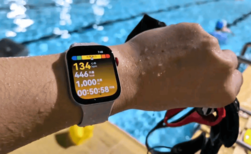
One of the main reasons people use a smartwatch is to track health and fitness data. When properly connected, HiWatch Pro can sync information such as:
- daily step count
- heart rate
- sleep tracking
- calories burned
However, some users notice that their smartwatch stops syncing data with the mobile app.
This issue can make it seem like the watch is not working correctly, but in most cases the problem is caused by simple connection or software settings.
This guide explains the most common reasons why HiWatch Pro fails to sync data and provides practical solutions you can try.
Common Reasons Data Stops Syncing
Several factors can prevent the smartwatch from syncing correctly.
Typical causes include:
- Bluetooth connection instability
- background app restrictions
- outdated application versions
- app permission settings
Understanding these causes will make troubleshooting easier.
Fix 1 – Reconnect the Smartwatch
A temporary connection interruption can stop data synchronization.
Try reconnecting the device:
- Open the smartwatch app
- Disconnect the device
- Reconnect the smartwatch
After reconnecting, data should begin syncing again.
Fix 2 – Enable Background Activity
Many phones restrict background apps to save battery.
If the app cannot run in the background, syncing may stop.
Check the following setting:
Settings → Apps → HiWatch Pro → Background Activity
Allow the app to run normally.
Fix 3 – Turn Off Battery Optimization
Battery optimization can block background synchronization.
Disable optimization for the smartwatch app to ensure continuous syncing.
Fix 4 – Keep Bluetooth Stable
Bluetooth interruptions can stop data transfer.
Tips for a stable connection:
- keep your phone close to the watch
- avoid turning Bluetooth on and off frequently
- reconnect if the connection drops
Fix 5 – Update the App
Older versions of the app may contain bugs affecting synchronization.
Installing the latest version can solve many problems.
You can download the newest version here:
https://hiwatch.app
Tips to Improve Data Sync Accuracy
To ensure accurate tracking:
- wear the watch snugly on your wrist
- keep the device connected regularly
- open the app periodically to refresh data
These simple habits help maintain accurate fitness records.
FAQ
Why are my steps not syncing?
Steps may not sync if the Bluetooth connection was interrupted or if background activity is restricted.
Why does sleep data appear late?
Sleep tracking often syncs after the watch reconnects to the phone in the morning.
Conclusion
If your **HiWatch Pro smartwatch is not syncing data, the issue is usually related to Bluetooth stability, background permissions, or outdated software.
Adjusting these settings should restore normal synchronization.