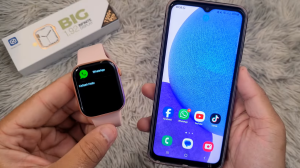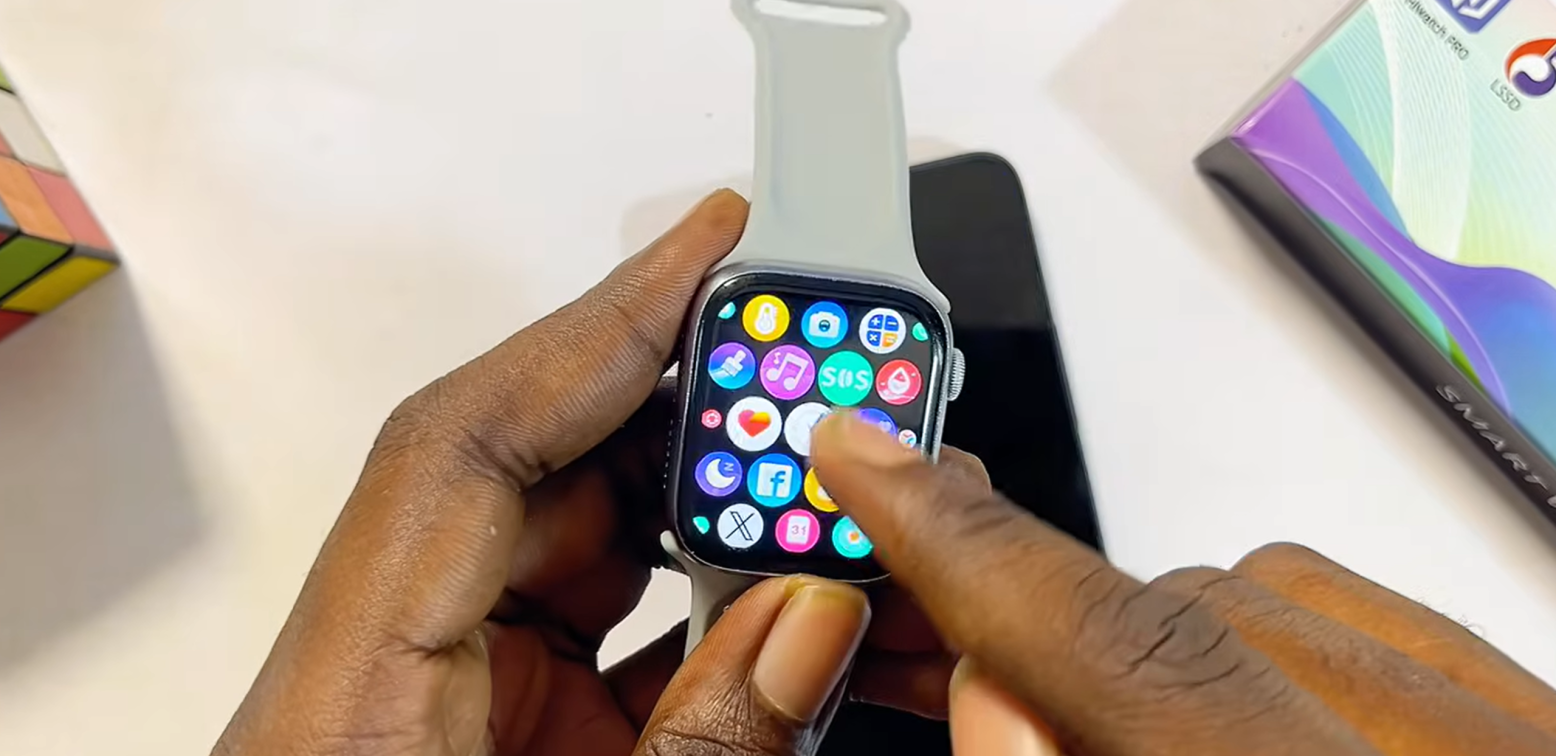
Getting a new HiWatch Pro smartwatch is exciting, but many users struggle during the initial setup process. Whether you’re using Android or iPhone, this guide will walk you through every step to successfully connect your HiWatch Pro smartwatch and unlock all its features.
If you haven’t downloaded the official app yet, visit:
to download the latest version of HiWatch Pro.
Before You Start
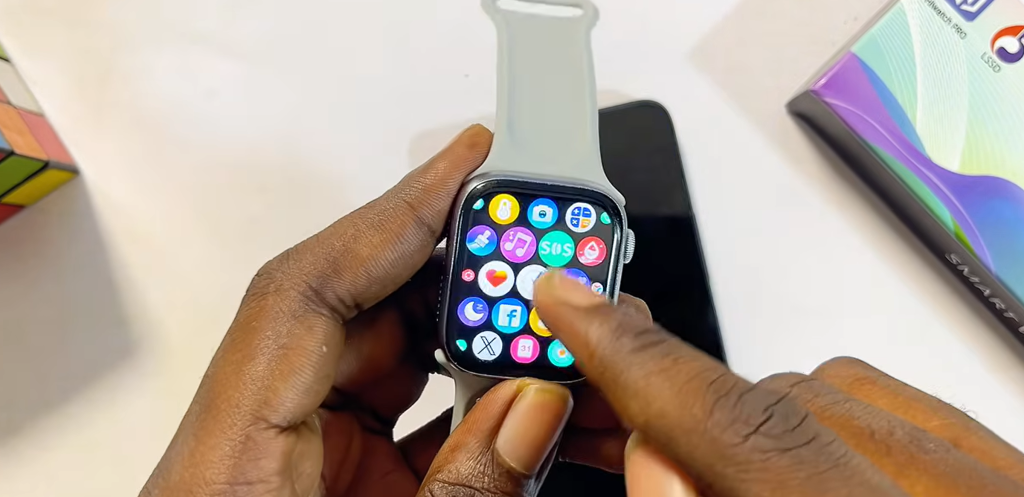
Before pairing your smartwatch, make sure:
- Your phone has Bluetooth enabled
- Location services are turned on
- Your smartwatch is charged above 30%
- The HiWatch Pro app is installed
These requirements help ensure a smooth connection process.
Step 1: Install the HiWatch Pro App
Open the App Store (iPhone) or Google Play Store (Android).
Search for:
HiWatch Pro
Download and install the application.
If you’re unsure whether your watch uses HiWatch Pro, check your watch settings and scan the QR code provided by the manufacturer.
Alternatively, you can download the correct app directly from:
Step 2: Enable Bluetooth and Location
Many connection issues occur because users forget this step.
On your phone:
- Open Settings
- Enable Bluetooth
- Enable Location Services (GPS)
The HiWatch Pro app requires both permissions to discover nearby devices.
Step 3: Connect Your Smartwatch
Open the HiWatch Pro app.
Tap:
Device → Bind Device
The app will begin searching for nearby watches.
When your watch appears in the list:
- Select your watch name
- Wait a few seconds
- Tap Pair when prompted
Your smartwatch should now be successfully connected.
Step 4: Enable Notifications
One of the most popular features of HiWatch Pro is receiving phone notifications directly on your wrist.
Inside the app:
- Open Push Notifications
- Grant Notification Access
- Enable apps such as:
- Telegram
- Messenger
Once enabled, incoming notifications will appear on your smartwatch.
Step 5: Enable Bluetooth Calling
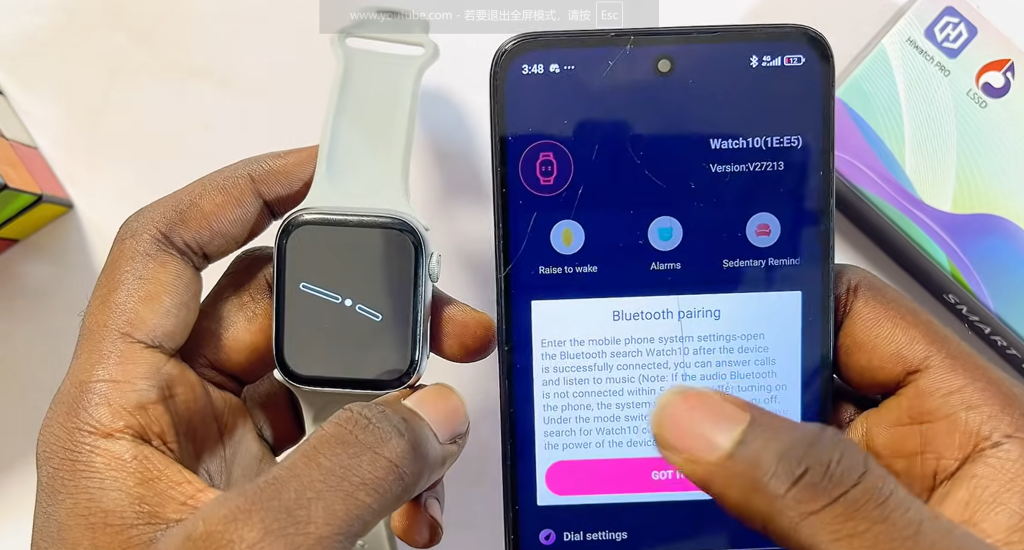
Many HiWatch Pro models support Bluetooth calling.
To activate:
- Open watch settings
- Enable Bluetooth Calling
- Set Bluetooth mode to Intelligent Mode
- Pair the watch with your phone’s Bluetooth
After setup, you can:
- Answer calls
- Reject calls
- Dial numbers directly from the watch
Step 6: Customize Your Watch Face
You can personalize your smartwatch appearance.
Inside the app:
- Open Dial Settings
- Browse available watch faces
- Select your favorite design
- Sync to the watch
You can also upload your own photo as a custom wallpaper.
Common Setup Problems
Watch Not Showing in App
Try:
- Turning Bluetooth off and on
- Restarting the watch
- Restarting the phone
- Re-enabling location permissions
Pairing Failed
Remove old Bluetooth connections and attempt pairing again.
Notifications Not Working
Ensure Notification Access is enabled in your phone settings.
Final Thoughts
Setting up a HiWatch Pro smartwatch only takes a few minutes when all permissions are configured correctly.
Once connected, you’ll be able to receive notifications, make calls, track fitness data, and customize your watch experience.
Need the latest HiWatch Pro download or more troubleshooting guides?
Visit:
for downloads, FAQs, and step-by-step tutorials.